
During Mini Program development, the following scenarios all require getting the target page’s page path (path) first:
- Navigating to another Mini Program: wx.navigateToMiniProgram
- Setting the landing page of a share card
- Generating a Mini Program QR code that points to a specific page
Below are two methods for getting a page path. The difference lies in whether you can get the path of someone else’s Mini Program:
| Method | Entry Point | Scope |
|---|---|---|
| Official Account admin console | New article → Mini Program | Any Mini Program |
| Mini Program admin console | Mini Program Code → Get Mini Program page code | Your own Mini Program |
Method 1: Get the Page Path of Any Mini Program via the Official Account Admin Console#
This method leverages the Mini Program insertion feature of the Official Account article editor, allowing you to get the page path of any Mini Program.
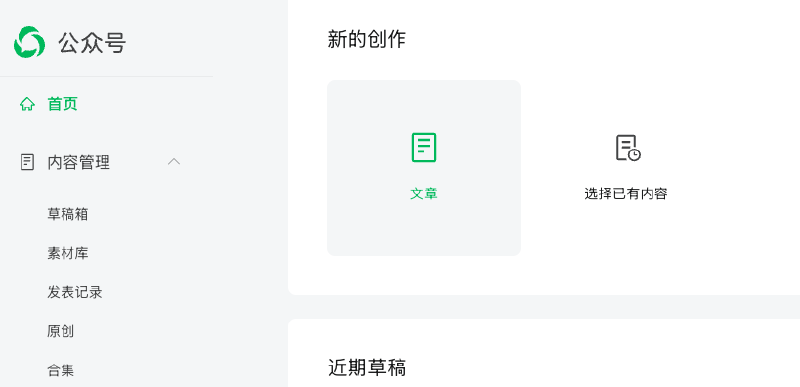
Log in to the Official Account admin console and go to “New Creation” → “Article”.
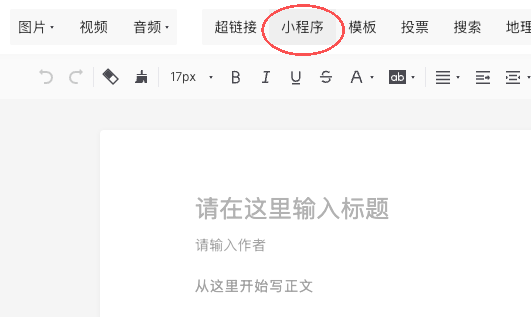
Click “Mini Program” in the toolbar.
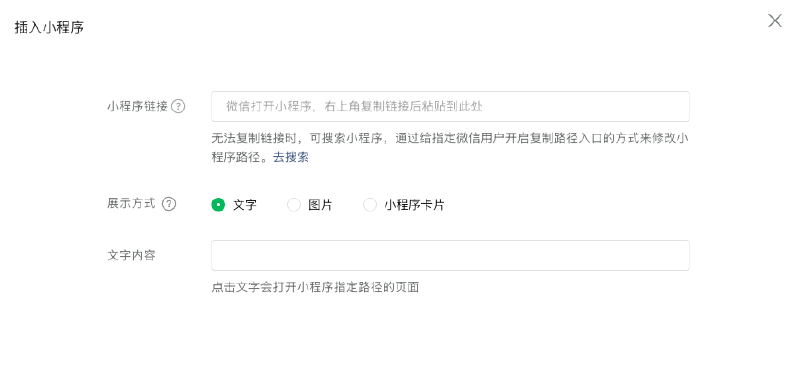
Click “Search”.
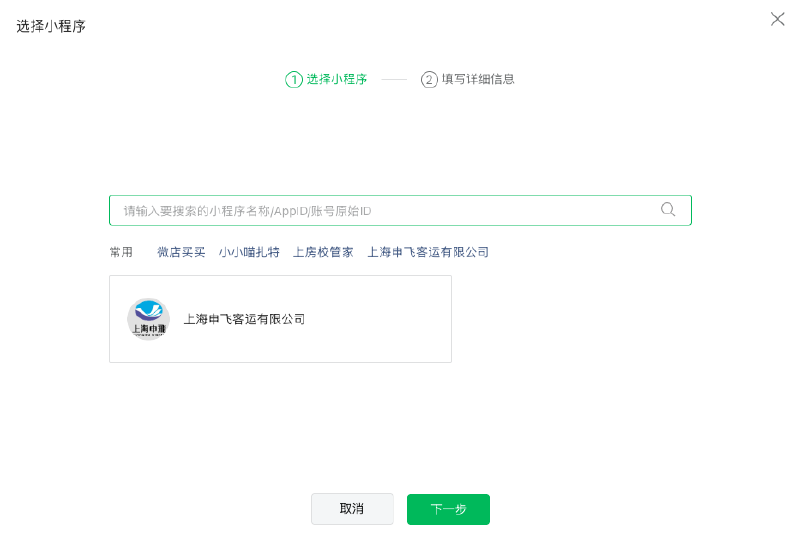
Search for the Mini Program whose page path you want to get.
Enter the Mini Program’s page selection screen and click “Get more page paths”.
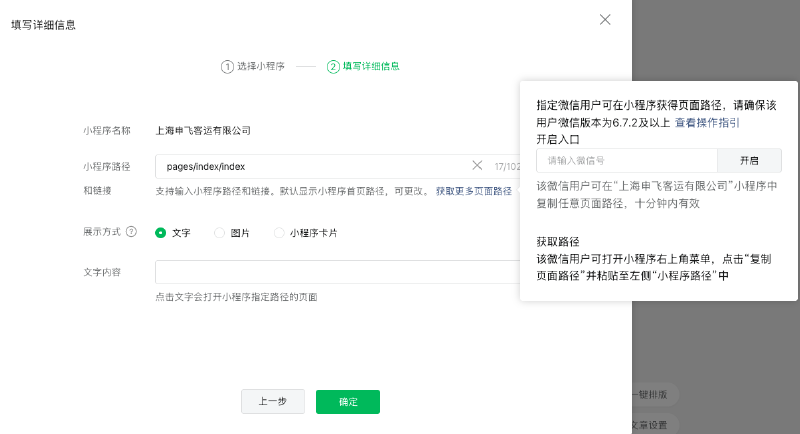
Then follow the “Copy Page Link” steps below to get the path of any page.
Method 2: Get the Page Path of Your Own Mini Program via the Mini Program Admin Console#
This method only applies to Mini Programs you have admin access to (i.e. your own Mini Programs).
Log in to the Mini Program admin console, go to “Mini Program Code” → “Get Mini Program page code”, and click “Get more page paths”.
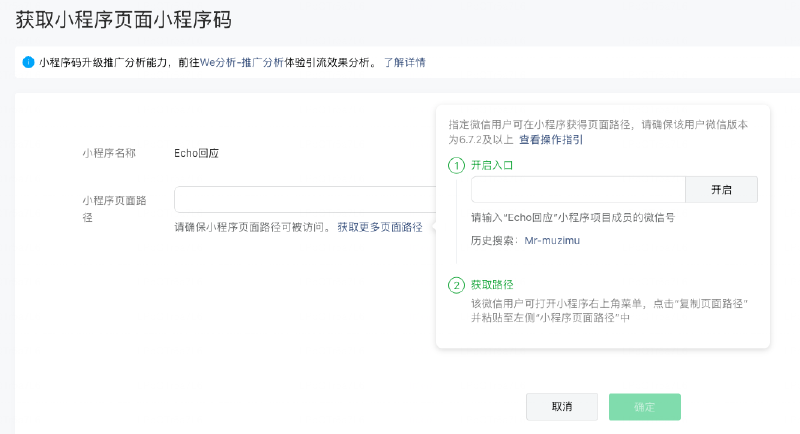
Copy Page Link#
Regardless of which method above you use, once “Get more page paths” is enabled, the steps are the same:
- Enter an authorized WeChat ID (for Method 1, a WeChat ID that follows the Official Account; for Method 2, a WeChat ID of a Mini Program project member) and enable it.
- Use your phone to open the Mini Program and tap the “More” button in the top-right corner.
- Tap “Copy Page Link” in the menu to get the page path of the current page.